A private Chrome in the cloud, for you and your agents
A remote Chrome you open in a tab and your scripts drive over CDP.
Shelley handles the setup. About 5 minutes.
Prefer a terminal?
curl -fsSL https://exe-staging.dev/deploy/cloud-browser/prompt.txt | ssh exe.dev new --prompt=/dev/stdinSometimes you just need a browser somewhere else: one that stays signed in to the dashboards you check every day, that keeps running when you close your laptop, that a script or an AI agent can drive while you watch, or that opens the link you'd rather not open on your own machine. This recipe puts Google Chrome on an exe.dev VM. You use it in a browser tab, with sound, clipboard and file transfer, and programs drive the same browser through Chrome's DevTools protocol (CDP): Playwright, Puppeteer, or Claude Code and Codex through Playwright MCP.
It's private without any work: the tab is behind exe.dev login, so there's no password to set and no public URL to guard. Logins and cookies live on the VM's disk and survive restarts. Microsoft Edge or Chromium instead of Chrome is one setting. If you need a whole desktop rather than a browser, see Linux desktop or Computer use.
What you get#
- Google Chrome running all the time in a container, restarted if it closes or crashes and after a reboot
- The browser at
https://<vm>.exe.xyz:3000/, behind exe.dev login, with sound, clipboard and file upload and download - Chrome's DevTools protocol on
localhost:9222and, behind exe.dev login, athttps://<vm>.exe.xyz:9222/ - Playwright MCP on
localhost:8931, registered with Claude Code, driving the same browser - Logins, cookies and tabs kept in
~/browser/configon the VM's disk
What's running, and where
https://my-browser.exe.xyz:3000/
the browser, in a tab, behind exe.dev login
https://my-browser.exe.xyz:9222/
CDP for scripts elsewhere, with an exe.dev token; or ssh -L 9222:localhost:9222
http://localhost:9222
CDP for scripts and agents on the VM
Deploy with Shelley#
Click Deploy and Shelley will set up Cloud browser on a new VM, then check that it works. No config-file wrangling required.
Prefer a terminal?
curl -fsSL \
  https://exe-staging.dev/deploy/cloud-browser/prompt.txt \
  | ssh exe.dev new --prompt=/dev/stdin
What Shelley is told
Set up Cloud browser on this VM by following the exe.dev recipe at https://exe-staging.dev/deploy/cloud-browser.md from top to bottom.

The recipe's example VM name is my-browser. This VM's name is the output of `hostname`: use it wherever the recipe writes my-browser. Skip the step that creates the VM; you are on it.

You are done when all of these are true. Check each one yourself:
- Google Chrome running all the time in a container, restarted if it closes or crashes and after a reboot
- The browser at `https://<vm>.exe.xyz:3000/`, behind exe.dev login, with sound, clipboard and file upload and download
- Chrome's DevTools protocol on `localhost:9222` and, behind exe.dev login, at `https://<vm>.exe.xyz:9222/`
- Playwright MCP on `localhost:8931`, registered with Claude Code, driving the same browser
- Logins, cookies and tabs kept in `~/browser/config` on the VM's disk

Run the VM-side command in "Set up by hand" (skip creating the VM),
then the commands in "Let an agent drive it" that connect Claude Code
to Playwright MCP, and check them with the `claude -p` command there.
If Claude Code settings already exist, add the MCP server without
replacing them. Never make the VM public or point port 8000 at port
3000 or 9222: the browser has no password of its own. Finish with the
browser's URL.

Finish with the URLs I should open.
Also at /deploy/cloud-browser/prompt.txt. The recipe it follows is /deploy/cloud-browser.md.
Set up the browser#
Deploy does this for you. By hand, it's one script that starts the browser and its helpers with Docker Compose.
Set up by hand
On your computer, create a VM and connect. Pick any free name; if you've already clicked Deploy or have a VM, skip the first command and use its name:
ssh exe.dev new --name=my-browser
ssh my-browser.exe.xyz
On the VM, read setup.sh, then run it:
curl -fsSL https://exe-staging.dev/deploy/cloud-browser/setup.sh | bash
For Microsoft Edge, put BROWSER=edge in front of bash; for Chromium,
BROWSER=chromium. TZ=Europe/Berlin (or your own time zone) sets the
browser's clock, which defaults to UTC.
It takes about a minute, most of it downloading, and ends with the
browser's version and its addresses. Everything is in ~/browser:
| Path | What it is |
|---|---|
compose.yaml |
three containers: browser, LinuxServer.io's Chrome image with Selkies on port 3000; cdp, an nginx that passes CDP to port 9222; and mcp, Microsoft's Playwright MCP on localhost:8931 |
config/ |
the browser's home: its profile in config/profile, downloads in config/Downloads |
cdp.conf |
the nginx config |
close-browser.py, init/ |
small scripts that close the browser cleanly when the container stops, and clear a stale profile lock when it starts |
The containers restart if they stop and come back after a reboot. If you close the browser's last window, it opens again a second later. Running the script again updates the images and keeps the profile.
Open it in a tab#
Open https://my-browser.exe.xyz:3000/ and sign in to exe.dev if asked.
Chrome fills the tab and follows its size. Sign in to the sites you use;
the browser keeps the cookies on the VM's disk, so you stay signed in
across restarts and from any computer you open the tab on.
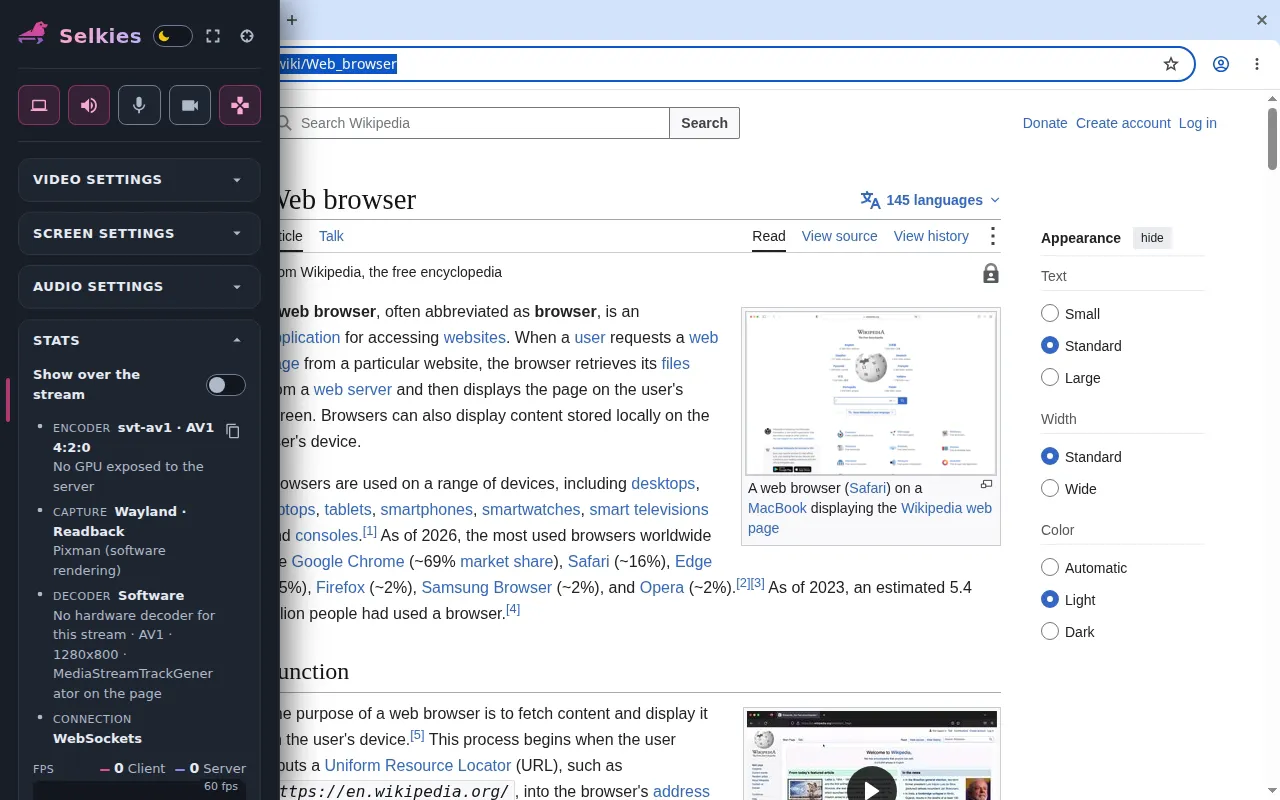
The tab is a video stream of the browser, encoded in software and sent over a WebSocket; your clicks and keys go back the same way. Reading, typing and scrolling feel close to local, and video plays with sound. The handle at the left edge opens Selkies' sidebar:
- Clipboard: text you copy on either side shows up on the other.
- Files: upload files to the browser's Downloads folder, and download
what it saved. They're also in
~/browser/config/Downloadson the VM. - Video settings: codec, frame rate and quality, if the stream is slow on your connection.
- Fullscreen, and buttons for sound, microphone and webcam.
To give a teammate the same browser, share the VM with them, on your
computer: ssh exe.dev share add my-browser teammate@example.com. They
sign in to exe.dev and open the same address, without getting a shell
on the VM. Two people in the tab share one mouse and keyboard.
Warning
The browser has no password of its own; exe.dev login is the lock. Don't point port 8000 at it with
share portandshare set-public, or anyone could use it, signed in as you.
Drive it from code#
On the VM, Chrome's DevTools protocol is at http://localhost:9222.
Playwright and Puppeteer attach to the running browser, its tabs, and
its signed-in sessions, and you watch what they do in the tab:
# /// script
# dependencies = ["playwright"]
# ///
from playwright.sync_api import sync_playwright

with sync_playwright() as p:
    browser = p.chromium.connect_over_cdp("http://localhost:9222")
    context = browser.contexts[0]  # the browser's own profile
    page = context.new_page()
    page.goto("https://news.ycombinator.com/")
    print(page.locator(".titleline > a").first.inner_text())
Save it as top.py and run uv run top.py: a new tab opens in the
browser and the script prints Hacker News' top story. uv installs
Playwright the first time; it doesn't need to download a browser. In
Puppeteer, puppeteer.connect({ browserURL: "http://localhost:9222" })
does the same. On a CDP connection, browser.close() only disconnects:
the browser keeps running, and so do the tabs the script opened, so
close those with page.close() if you don't want them piling up.
From your own computer, an SSH tunnel makes the VM's CDP port local:
ssh -N -L 9222:localhost:9222 my-browser.exe.xyz
While it runs, http://localhost:9222 on your computer is the VM's
browser. Programs elsewhere, such as a CI job, can also go through
exe.dev's proxy at https://my-browser.exe.xyz:9222/ with a
VM token (ssh exe.dev ssh-key generate-api-key --vm=my-browser --label=cdp) in an
X-Exedev-Authorization: Bearer ... header:
browser = p.chromium.connect_over_cdp(
    "https://my-browser.exe.xyz:9222/",
    headers={"X-Exedev-Authorization": "Bearer " + token},
)
The nginx in front of Chrome rewrites the WebSocket addresses Chrome
hands out, so they point back through the proxy. Use the https://
address; Playwright finds the WebSocket from there.
Let an agent drive it#
The setup runs Playwright MCP next to the browser, on localhost:8931.
It gives an agent tools such as browser_navigate, browser_click and
browser_snapshot, which reads the page's structure rather than
screenshots. Connect Claude Code on the VM to the LLM integration (if
you haven't) and to Playwright MCP:
exeuntu configure claude
claude mcp add --transport http --scope user playwright http://localhost:8931/mcp
claude -p "Use the playwright tools to open https://news.ycombinator.com and tell me the title of the top story." --allowedTools=mcp__playwright
With the tab open, you watch the browser go to Hacker News, and Claude
answers with the top story in about ten seconds. For Codex,
codex mcp add playwright --url http://localhost:8931/mcp. The model
comes through exe.dev's LLM integration, so
there's no API key on the VM.
Shelley, the agent that comes with every VM, can write
and run Playwright scripts like the one above against localhost:9222;
ask it to use that browser so you can watch. An agent somewhere else,
with the exe MCP, can run them over SSH.
The agent uses the browser you're signed in to. Only sign in to accounts you'd hand to the agent: a web page can carry instructions that steer it. For a browser the agent has to itself, use a second VM.
Headless and light: Lightpanda#
For scraping and tests that nobody watches, a full Chrome is more than you need. Lightpanda is a headless browser written from scratch for automation: it speaks CDP, runs JavaScript, and draws nothing. On the VM, next to Chrome or on its own:
docker run -d --name lightpanda --restart unless-stopped \
  -p 127.0.0.1:9333:9222 -e LIGHTPANDA_DISABLE_TELEMETRY=true \
  lightpanda/browser:latest
Then p.chromium.connect_over_cdp("ws://127.0.0.1:9333") and
browser.new_context().new_page() in the script above. It loaded Hacker
News and read the top story in 0.1 seconds, using 4 MB of memory. It
sends usage telemetry unless LIGHTPANDA_DISABLE_TELEMETRY is set, and
not every site works in it yet; when one doesn't, use Chrome.
What doesn't work#
- No GPU. The VM has none, so the stream is encoded on the CPU and WebGL is off (see the FAQ). Video calls and games are poor.
- Some streaming video. YouTube works; services that require hardware DRM may not.
- Sites that block data centers. Some sites show more CAPTCHAs or refuse to sign in from a cloud IP address. That's the address the browser has; there's no proxy or residential IP here.
- One user at a time. Two people in the tab share the mouse.
Back up and restore
All the state is in ~/browser/config. To copy the whole VM, on your
computer:
ssh exe.dev cp my-browser my-browser-backup
The copy starts with the browser and its profile, signed in, at
https://my-browser-backup.exe.xyz:3000/. To keep just the profile, on
the VM:
cd ~/browser && docker compose stop
tar -czf ~/browser-config.tgz config
docker compose start
Restore by stopping the containers, unpacking it into ~/browser, and
starting them again.
Update
LinuxServer.io rebuilds its images when Chrome updates. On the VM:
cd ~/browser && docker compose pull && docker compose up -d
The browser closes cleanly, restarts with the new version, and keeps its
profile. Running the setup script again does the same and also updates
compose.yaml.
Troubleshooting
- The tab shows 502 or doesn't load. Check the containers with
cd ~/browser && docker compose ps;docker logs browsersays why one stopped. After a reboot, the browser takes about half a minute. curl localhost:9222/json/versionfails but the tab works. Thecdpcontainer shares the browser's network; if you restarted only the browser container, rundocker compose up -din~/browserto bring both back.- Signed out after a restart. Chrome writes cookies to disk every 30
seconds or so.
docker compose restartand updates close it cleanly first, but if the VM restarts right after you sign in, sign in again. - The browser says its profile is in use by another computer. Run
docker compose restartin~/browser; the start script clears the stale lock. claude mcp listsays Failed to connect. Checkdocker logs browser-mcp-1. If a browser tool fails after the browser restarted, ask the agent to try again.
Frequently asked questions#
How is this different from the Linux desktop and computer use recipes?
It's only a browser. Linux desktop gives you a whole Xfce desktop with a terminal, an editor and coding agents; Computer use adds a desktop that agents drive from screenshots, for apps that aren't web pages. Here the browser fills the tab, it runs in one container you can update or remove with one command, and it has sound. If all you or your agent need is the web, start here.
Who can use the browser?
People you've given access to the VM. Ports 3000 and 9222 go through exe.dev's HTTPS proxy, which asks for an exe.dev login or an exe.dev token, and ports other than the main one can never be made public. Remember that whoever can open the tab is signed in to everything you signed in to there.
Can I use Firefox?
Not with this setup. LinuxServer.io has a Firefox image (lscr.io/linuxserver/firefox) that works the same way in a tab, but Firefox no longer speaks Chrome's DevTools protocol, so Playwright's connect_over_cdp, Puppeteer and Playwright MCP can't attach to it. BROWSER=edge and BROWSER=chromium are the choices the setup offers.
Does video work?
Mostly. YouTube plays with sound, and Widevine-protected test streams play, but streaming services may refuse HD or play nothing, since the VM has no GPU and no hardware DRM. Sites that need WebGL show an error: Chrome has no GPU to draw with. Adding --enable-unsafe-swiftshader to CHROME_CLI in ~/browser/compose.yaml turns on software WebGL, which is slow.
Can I run several browsers?
One VM runs one browser here, with one profile. For another one, with its own logins, create another VM and run the setup there, or copy this one with ssh exe.dev cp my-browser my-browser-2. Inside the browser, Chrome's own profiles (the person icon) also work.
How much does it cost?
The browser shares your exe.dev plan's CPU and memory. On a default VM (2 CPUs, 8 GB), it uses about 400 MB of memory and a few percent of CPU when idle, and about a third of the CPU while you watch a video. The images take about 6 GB of disk.
Updated Oct 31, 2026 · tested end to end Oct 31, 2026 · Markdown · manifest.json · Something wrong? Tell us